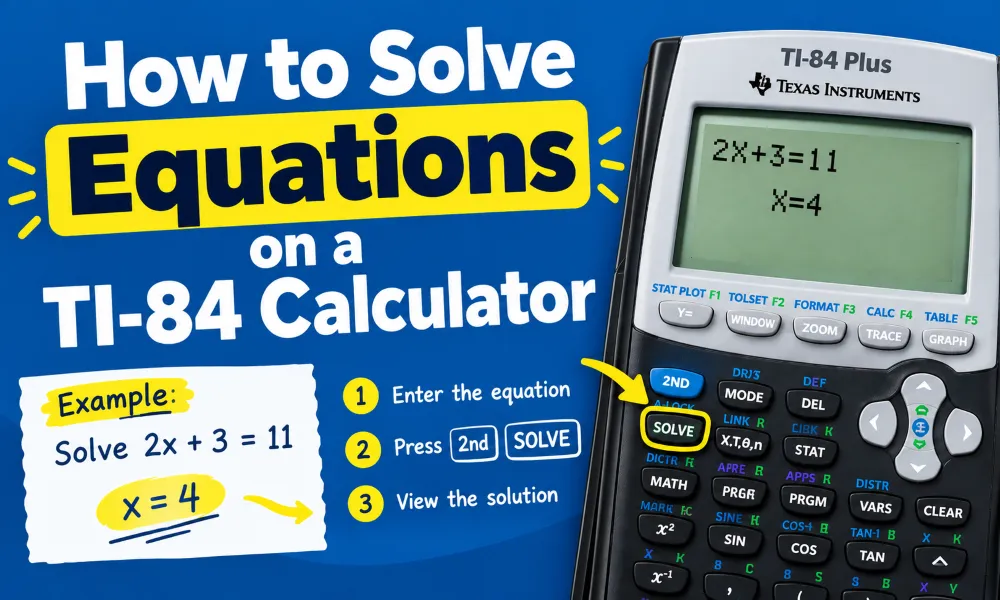
A TI-84 Calculator can solve many types of equations without requiring you to perform every algebra step by hand. The built-in Solver can find the value of a variable in an equation, while the graphing functions can help you find zeros and intersections. You can also use matrices for systems of linear equations.
The exact method depends on the equation you need to solve. A simple equation such as 2x + 5 = 17 can be solved with the built-in Solver. A quadratic equation such as x² - 5x + 6 = 0 can be solved by finding the zeros of the related graph. A system such as x + y = 10 and x - y = 2 can be handled with matrix operations.
This guide explains each method step by step.
How to Open the Equation Solver on a TI-84
The TI-84 has a built-in Solver that can solve equations containing one variable.
Follow these steps:
- Turn on the TI-84 Calculator.
- Press the MATH button.
- Scroll down to Solver….
- Press ENTER.
- The calculator opens the equation solver screen.
- Enter the equation you want to solve.
- Press ENTER.
- Move the cursor to the variable you want to find.
- Press ALPHA and then ENTER to select SOLVE.
- Press ENTER again if required.
For example, suppose you want to solve:
2x + 5 = 17
Enter the equation into the Solver:
2X+5=17
The TI-84 displays a value for X.
The answer is:
X = 6
The Solver can handle many equations that contain arithmetic operations, powers, parentheses, fractions, and functions.
How to Solve a Simple Linear Equation
A linear equation has a variable raised to the first power. A common example is:
3x + 7 = 22
You can use the TI-84 Solver to find x.
Steps
- Press MATH.
- Select Solver….
- Press ENTER.
- Enter
3X+7=22. - Press ENTER.
- Move the cursor to
X. - Press ALPHA.
- Press ENTER.
- Read the result.
The calculator gives:
X = 5
You can use the same process for equations such as:
5x - 12 = 28
7x + 3 = 45
4(x + 2) = 24
The Solver handles the algebraic calculation after you enter the equation correctly.
How to Enter X on a TI-84
The TI-84 uses a dedicated variable button for X.
Press the X,T,θ,n button to enter X.
For example, to enter:
4x + 8
press:
4 → X,T,θ,n → + → 8
Do not type the letter x from a standard keyboard. The calculator uses its own variable key.
The multiplication sign can also be important. For example, enter 3x as:
3 × X
The TI-84 often displays the expression as 3X.
How to Solve an Equation With Parentheses
The TI-84 can solve equations that contain parentheses.
Consider:
4(x + 3) = 28
Enter the equation in the Solver:
4(X+3)=28
Use the left and right parentheses buttons to group the expression.
The result is:
X = 4
Parentheses are especially important when an equation contains several operations.
For example:
3(2x - 5) = 21
Enter the entire expression before pressing ENTER.
The TI-84 follows the standard order of operations while calculating the solution.
How to Solve Equations With Fractions
You can also use the TI-84 Solver for equations containing fractions.
For example:
x/4 + 3 = 8
Enter:
X/4+3=8
The calculator returns:
X = 20
Use the division key when entering a fraction.
For a more complex fraction, use parentheses to make the numerator and denominator clear.
For example:
(x+2)/5 = 6
Enter:
(X+2)/5=6
The answer is:
X = 28
Correct parentheses help prevent input errors.
How to Solve Quadratic Equations on a TI-84
A quadratic equation contains an x² term. An example is:
x² - 5x + 6 = 0
The TI-84 can solve this equation by using the graphing method.
First, rewrite the equation as:
y = x² - 5x + 6
Then graph the function.
Steps to Graph a Quadratic Equation
- Press Y=.
- Enter
X²-5X+6. - Press GRAPH.
- Adjust the window if necessary.
- Look for the points where the graph crosses the x-axis.
The x-intercepts are the solutions.
For this equation, the solutions are:
X = 2
and
X = 3
The graphing method is useful because it provides a visual representation of the equation.
How to Find a Quadratic Equation's Zeros
You can use the TI-84's CALC menu to find an x-intercept.
After graphing the equation:
- Press 2ND.
- Press TRACE to open the CALC menu.
- Select zero.
- Move the cursor near the left side of the x-intercept.
- Press ENTER.
- Move the cursor to the right side of the intercept.
- Press ENTER.
- Move the cursor close to the intercept.
- Press ENTER.
The TI-84 calculates the zero.
Repeat the process for the second x-intercept if the quadratic has two real solutions.
How to Solve Equations Using the TI-84 Solver With a Guess
Some equations require the calculator to start with an estimated value.
For example, a nonlinear equation may have several possible solutions. The TI-84 Solver can use an initial guess to determine which solution to calculate.
After entering the equation, you may see a value next to the variable.
Enter a reasonable starting value for the variable.
Then select SOLVE.
The calculator searches for a solution based on the equation and the starting value.
A different starting value can lead the calculator toward a different solution when an equation has multiple roots.
This feature is useful for equations that are not easily solved by basic algebra.
How to Check an Equation Answer on a TI-84
Checking an answer is an important step.
Suppose the calculator gives:
X = 6
for:
2x + 5 = 17
Enter the left side separately:
2(6)+5
The result is:
17
The right side is also:
17.
Since both sides have the same value, x = 6 satisfies the equation.
You can use this method for almost any equation.
Checking the result can also help identify an incorrect input.
How to Solve Systems of Equations on a TI-84
A system of equations contains two or more equations with multiple variables.
For example:
x + y = 10
x - y = 2
The TI-84 can solve systems using matrix operations.
First convert the equations into standard form:
1x + 1y = 10
1x - 1y = 2
The coefficient matrix is:
[[1,1],[1,-1]]
The constant matrix is:
[[10],[2]]
You can enter these matrices through the 2ND → MATRIX menu.
Basic Matrix Method
- Press 2ND.
- Press MATRIX.
- Select EDIT.
- Select matrix
[A]. - Set the matrix dimensions to
2 × 2. - Enter the coefficients.
- Create matrix
[B]. - Set
[B]to2 × 1. - Enter the constants.
- Return to the home screen.
- Calculate
[A]â»Â¹[B].
The resulting matrix contains the values of the variables.
For this system:
x = 6
y = 4
Matrix methods become useful when you need to solve larger systems.
How to Solve Equations by Finding Intersections
The TI-84 can also solve equations by graphing both sides.
Suppose the equation is:
2x + 3 = x²
Enter each side as a separate function:
Y1 = 2X + 3
Y2 = X²
Then press GRAPH.
The solutions are the x-values where the two graphs intersect.
To find an intersection:
- Press 2ND.
- Press TRACE.
- Select intersect.
- Move near the intersection.
- Press ENTER.
- Press ENTER again when prompted.
- Press ENTER again to calculate the intersection.
The TI-84 displays the x-coordinate of the intersection.
This method works well when an equation has two different expressions on each side.
How to Solve Equations With Square Roots
The TI-84 can solve equations that contain square roots.
For example:
√(x + 4) = 6
Enter the equation into the Solver:
sqrt(X+4)=6
The solution is:
X = 32
Use the 2ND button followed by the appropriate square root function to enter a square root.
Always use parentheses when the square root applies to an entire expression.
For example:
√(x + 4)
should be entered with the complete expression inside the square root.
How to Solve Equations With Exponents
The TI-84 can also work with exponential equations.
For example:
2^x = 16
Enter:
2^X=16
The result is:
X = 4
Use the caret ^ key to enter an exponent.
For larger expressions, use parentheses when needed.
For example:
3^(x+1)=27
The parentheses tell the calculator that the entire x+1 expression is the exponent.
What to Do When the TI-84 Cannot Find a Solution
The TI-84 may display an error or fail to return a useful solution when the equation has no real solution, has multiple solutions, or has an incorrect input.
Check these items:
- Confirm that both sides of the equation are entered correctly.
- Check every parenthesis.
- Check negative signs.
- Check multiplication signs.
- Make sure the correct variable is selected.
- Try a different starting value.
- Check whether the equation has a real solution.
- Use graphing to inspect the equation.
- Check the calculator's window settings when using graphs.
An incorrect starting value can also affect a Solver calculation for some nonlinear equations.
Common TI-84 Equation Solver Errors
Several mistakes can prevent the Solver from producing the expected answer.
Missing Multiplication
Enter:
3X
instead of treating 3 and X as separate entries without an operation where one is required.
Incorrect Parentheses
An expression such as:
(X+2)/4
requires both parentheses around X+2.
Wrong Variable
Make sure the Solver is calculating the variable you need.
Incorrect Equation Format
Check both sides of the equal sign.
For example:
2X+5=17
is different from:
2X+5-17
The Solver needs the equation relationship to be entered correctly.
Can a TI-84 Solve Any Equation?
No. A TI-84 cannot automatically solve every mathematical equation with one button.
The Solver works well for many single-variable equations. Graphing can help with zeros and intersections. Matrix calculations can solve systems of linear equations. Some equations may require algebraic manipulation before they can be entered into the calculator.
The TI-84 also has numerical limitations. Some solutions may be displayed as decimal approximations rather than exact symbolic answers.
For equations with complex solutions, the appropriate calculator mode and method may be required.
Tips for Solving Equations Faster
Use these practices when working with equations on a TI-84:
- Use Solver for single-variable equations.
- Use graphs for zeros and intersections.
- Use matrices for systems of linear equations.
- Use parentheses for grouped expressions.
- Check calculated answers by substitution.
- Use a sensible starting value for nonlinear equations.
- Review the equation before pressing SOLVE.
- Change the graph window when an intercept is outside the visible area.
Learning which TI-84 function matches the equation type can make calculations much faster.
Frequently Asked Questions
Can a TI-84 solve equations?
Yes. The TI-84 has a built-in Solver that can calculate numerical solutions for many equations containing one variable.
Where is Solver on a TI-84?
Press MATH, scroll to Solver…, and press ENTER.
How do I solve for X on a TI-84?
Enter the equation in the Solver, select the X variable, and choose SOLVE. The calculator then calculates a numerical value for X.
Can a TI-84 solve quadratic equations?
Yes. You can graph the quadratic function and use zero from the CALC menu to find its real x-intercepts.
Can a TI-84 solve two equations at once?
Yes. You can graph both equations and find their intersection. You can also use matrix calculations for systems of linear equations.
Why does my TI-84 say ERR: NO SIGN CHNG?
This message can appear when the Solver cannot find the requested solution within the specified bounds or starting range. Try a different starting value or check the equation.
How do I check my TI-84 answer?
Substitute the calculated value back into the original equation. Calculate both sides and confirm that they have the same value.
Does the TI-84 give exact answers?
The TI-84 commonly gives numerical decimal results for Solver calculations. Exact symbolic solutions depend on the calculation method and calculator model.
What is the easiest way to solve a linear equation?
The built-in Solver is usually the direct method for a single-variable linear equation. Enter the complete equation and use SOLVE to calculate the variable.
Can the TI-84 solve equations with fractions?
Yes. Enter fractions with the division key and use parentheses when the numerator or denominator contains multiple terms.
Can the TI-84 solve equations with square roots?
Yes. Square-root expressions can be entered directly into the Solver or represented through graphs.
Can the TI-84 solve equations with exponents?
Yes. Use the ^ key to enter powers and exponents. The Solver can calculate many single-variable exponential equations numerically.
🧮 Try the TI-84 Calculator Online — It's Free!
Put your knowledge to practice with our free browser-based TI-84 Plus CE emulator. No downloads, no sign-up required.
Open Calculator →