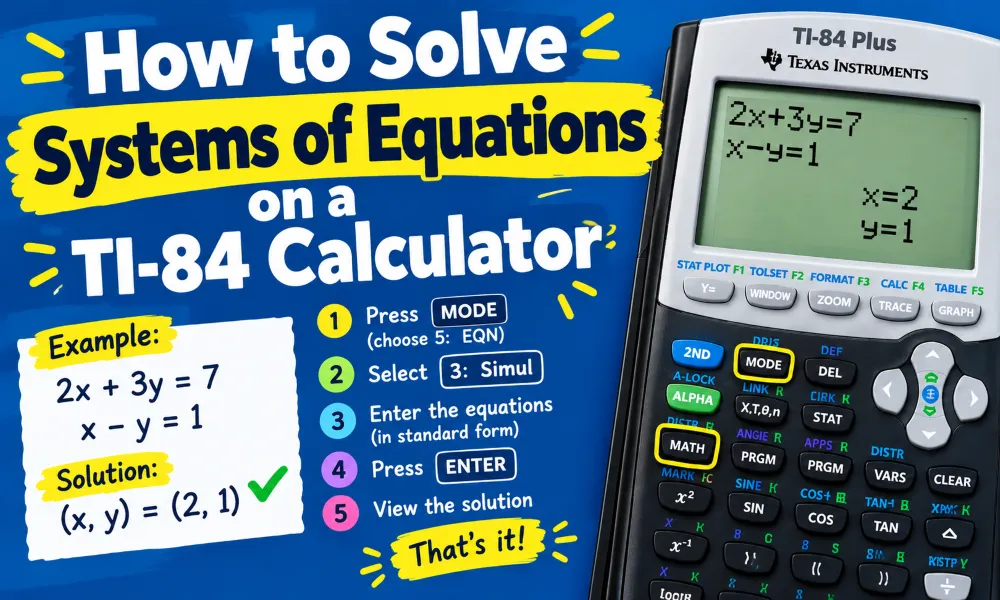
A TI-84 calculator can solve systems of equations without requiring you to calculate every step by hand. You can use the graphing functions to find where two equations intersect. You can also use matrix operations when you need an exact algebraic solution. The graphing method works well for simple linear equations, while the matrix method is useful when a system contains several equations and variables.
A system of equations contains two or more equations that use the same variables. For example, you may need to solve:
x + y = 7
2x — y = 5
The solution is the value of x and y that makes both equations true. On a TI-84, you can find this solution by entering the equations as functions and using the intersection feature.
How to Solve Systems of Equations on a TI-84 Using Graphing
The easiest method for solving a two-variable system is to graph both equations. The TI-84 can display the equations as lines and identify their point of intersection.
Consider this system:
x + y = 7
2x — y = 5
First, convert both equations into the form y = mx + b.
For the first equation:
x + y = 7
Subtract x from both sides:
y = -x + 7
For the second equation:
2x — y = 5
Subtract 2x from both sides:
-y = -2x + 5
Multiply both sides by -1:
y = 2x — 5
Now enter these two functions into the TI-84.
Step 1: Open the Y= Menu
Press the Y= button near the top of the calculator.
The screen displays function entries such as:
Y1 =
Y2 =
Enter the first equation into Y1:
-X + 7
Use the X,T,θ,n button to enter the variable x.
Enter the second equation into Y2:
2X — 5
Your screen should show:
Y1 = -X + 7
Y2 = 2X — 5
Step 2: Set an Appropriate Window
Press WINDOW to adjust the graphing window.
For this example, a window such as the following works:
Xmin = -10
Xmax = 10
Xscl = 1
Ymin = -10
Ymax = 10
Yscl = 1
Press GRAPH to display both lines.
The calculator should show two lines crossing at one point.
Step 3: Find the Intersection
Press 2nd and then TRACE to open the CALC menu.
Select 5:intersect.
The TI-84 will ask you to identify the first curve. Move the cursor close to the first line and press ENTER.
The calculator then asks for the second curve. Move the cursor close to the second line and press ENTER.
The calculator may ask for a guess. Move the cursor near the intersection and press ENTER again.
The TI-84 displays the coordinates of the intersection.
For this system, the result is:
x = 4
y = 3
Therefore, the solution is:
(4, 3)
The point (4, 3) satisfies both original equations.
How to Check a System of Equations Solution
You should check the answer in the original equations. This step helps identify mistakes caused by entering an equation incorrectly or reading the graph at the wrong location.
Using x = 4 and y = 3:
First equation:
x + y = 7
4 + 3 = 7
This is true.
Second equation:
2x — y = 5
2(4) — 3 = 5
8 — 3 = 5
This is also true.
The ordered pair (4, 3) is the solution.
How to Solve Systems of Equations Using Matrices
The TI-84 also supports matrix calculations. Matrix methods can be useful when the system contains several variables.
Consider the system:
x + y = 7
2x — y = 5
Write the system as an augmented matrix:
The TI-84 can use reduced row-echelon form to find the solution.
Step 1: Open the Matrix Menu
Press:
2nd → MATRIX
Select EDIT.
Choose matrix [A].
The calculator asks for the matrix dimensions.
This system has two equations and three columns, so enter:
2 × 3
Press ENTER.
Step 2: Enter the Augmented Matrix
Enter the values row by row:
| Column 1 | Column 2 | Column 3 | |
|---|---|---|---|
| Row 1 | 1 | 1 | 7 |
| Row 2 | 2 | -1 | 5 |
The matrix should represent:
Press 2nd → MODE to return to the main screen.
Step 3: Use rref
The TI-84 has an rref( function that calculates the reduced row-echelon form of a matrix.
Press:
2nd → MATRIX
Move to the MATH menu.
Select B:rref(.
The command appears on the screen.
Now select matrix [A].
The calculator should display something similar to:
rref([A])
Press ENTER.
The result will show:
This means:
x = 4
y = 3
The solution is therefore:
(4, 3)
How to Solve a 3-Variable System on a TI-84
You can use the matrix method for systems with three variables.
For example:
x + y + z = 6
2x — y + z = 3
x + 2y — z = 2
Create the augmented matrix:
This matrix has three rows and four columns.
On the TI-84, create matrix [A] with dimensions:
3 × 4
Enter all coefficients and constants.
Then use:
2nd → MATRIX → MATH → rref(
Select [A] and press ENTER.
The reduced matrix gives the values of x, y, and z.
This method is usually faster than graphing when a system has three variables because a standard two-dimensional graph cannot directly display three-variable relationships.
How to Identify No Solution on a TI-84
A system can have no solution. This happens when the equations represent parallel lines.
For example:
y = 2x + 3
y = 2x — 4
Both equations have the same slope, 2, but different y-intercepts.
The lines never intersect.
When you graph these equations on a TI-84, you will see two parallel lines. The intersect command will not provide a normal intersection point because no common solution exists.
A matrix can also reveal this situation.
If the reduced matrix produces a row such as:
0 = 1
the system is inconsistent and has no solution.
How to Identify Infinitely Many Solutions
Some systems have infinitely many solutions. This occurs when two equations describe the same line.
For example:
x + y = 7
2x + 2y = 14
The second equation is simply two times the first equation.
When graphed, both equations appear as the same line. There is no single intersection point because every point on the line satisfies both equations.
A matrix may produce a row of zeros, such as:
0 0 0
This indicates that the equations contain dependent information. You need to examine the reduced matrix to determine whether the system has infinitely many solutions.
Graphing vs. Matrix Method on a TI-84
The best method depends on the type of system.
| Method | Best Use | Main Advantage |
|---|---|---|
| Graphing | Two-variable systems | Easy visual solution |
| Intersection | Two linear functions | Quickly finds the solution |
| Matrix | Two or more variables | Works well with larger systems |
| rref | Linear systems | Produces an algebraic solution |
Graphing is useful when you want to understand the relationship between equations visually. Matrix calculations are useful when you need a systematic method for multiple variables.
Common TI-84 System of Equations Mistakes
Several input errors can produce incorrect results.
Entering the Original Equation Directly
The Y= menu expects functions of y in terms of x. You usually need to rearrange an equation into y = form before graphing.
For example, do not enter:
x + y = 7
as a standard Y= function.
Instead, enter:
Y1 = -X + 7
Using the Wrong Signs
Negative coefficients can change the solution completely. Check every positive and negative sign before calculating.
For example:
2x — y = 5
must become:
y = 2x — 5
The negative sign before y is important during the rearrangement.
Using a Poor Graphing Window
The intersection may be outside the visible graph. If the lines do not appear to cross, adjust the WINDOW settings.
You can also press ZOOM, then select 6:ZStandard to return to a standard viewing range.
Choosing the Wrong Intersection
When using the intersect command, move the cursor close to the desired intersection before selecting the guess.
This is especially important when several curves are displayed.
Forgetting to Check the Original Equations
Always substitute the calculated values into the original equations. The original equations provide the correct basis for checking the solution.
Tips for Solving Systems Faster on a TI-84
Use these practices to reduce input errors:
- Rearrange equations into y = form before graphing.
- Use parentheses around complicated expressions.
- Check negative signs carefully.
- Adjust the graphing window when the intersection is not visible.
- Use 2nd → TRACE → intersect to locate graph intersections.
- Use rref( for systems with multiple variables.
- Check the final values in every original equation.
- Keep fractions in exact form when possible.
- Clear old functions before starting a new problem.
- Label matrices carefully when working with several systems.
Can a TI-84 Solve Systems of Equations Directly?
A TI-84 does not provide a simple built-in menu labeled "Solve System†on the standard Y= screen. However, you can solve systems effectively with graphing and matrix operations.
For two-variable linear systems, graph the equations and use the intersect function. For larger linear systems, enter the augmented matrix and use rref(.
These methods can handle many common algebra and precalculus problems.
Final Example
Suppose you need to solve:
3x + y = 11
x — y = 1
Rearrange both equations:
y = -3x + 11
y = x — 1
Enter both equations into Y1 and Y2.
Graph the functions.
Use:
2nd → TRACE → 5:intersect
The calculator identifies the point where the lines cross.
The solution is:
x = 3
y = 2
Check the answer:
3(3) + 2 = 11
3 — 2 = 1
Both equations are true, so (3, 2) is the solution.
The TI-84 gives you two practical ways to solve systems of equations. Use graphing and the intersection command for simple two-variable problems. Use matrices and rref( when the system contains several equations or variables.
🧮 Try the TI-84 Calculator Online — It's Free!
Put your knowledge to practice with our free browser-based TI-84 Plus CE emulator. No downloads, no sign-up required.
Open Calculator →