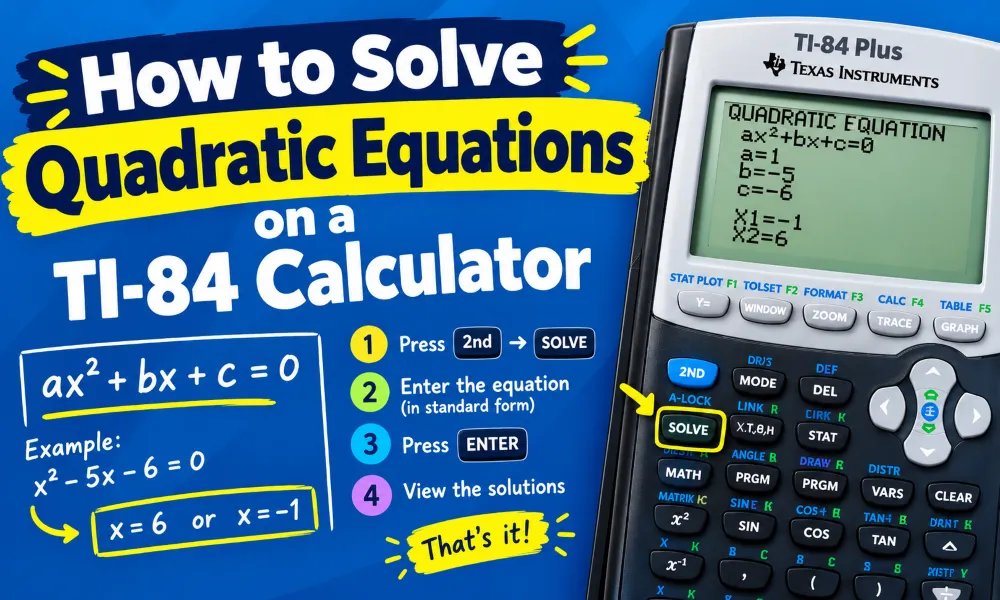
A quadratic equation has the general form ax² + bx + c = 0, where a, b, and c are numbers and a ≠ 0. Solving a quadratic equation means finding the value or values of x that make the equation equal to zero. A TI-84 calculator can help you find these solutions quickly.
The TI-84 does not have one dedicated button labeled "Quadratic Formula.†However, you can solve quadratic equations in several ways. You can enter the quadratic formula directly, graph the equation and find the x-intercepts, or use polynomial functions available through the calculator menus.
This guide explains how to solve quadratic equations on a TI-84 step by step. The examples also show how to handle two real solutions, one repeated solution, and complex solutions.
Put the Quadratic Equation in Standard Form
Before using a TI-84 calculator, write the equation in standard form:
ax² + bx + c = 0
The three coefficients are:
- a = coefficient of x²
- b = coefficient of x
- c = constant
For example:
2x² + 5x — 3 = 0
In this equation:
- a = 2
- b = 5
- c = -3
The signs are important. A negative number must be entered with the calculator's negative key when appropriate.
Method 1: Use the Quadratic Formula on a TI-84
The quadratic formula is:
x = (-b ± √(b² — 4ac)) / 2a
This formula works for every quadratic equation. You can enter the formula directly into the TI-84.
Consider:
2x² + 5x — 3 = 0
Here:
a = 2
b = 5
c = -3
First calculate the discriminant:
b² — 4ac
Substitute the values:
5² — 4(2)(-3) = 49
The square root of 49 is 7.
The two solutions are:
x = (-5 + 7) / 4
and
x = (-5 — 7) / 4
Therefore:
x = 1/2
and
x = -3
You can make the TI-84 perform these calculations directly.
Enter the First Solution
Press:
(-) 5 + √ ( 5² — 4(2)(-3) ) ÷ 4
Then press ENTER.
The calculator should return:
0.5
The exact value is:
1/2
Enter the Second Solution
Enter the same formula with subtraction:
(-5 — √(5² — 4(2)(-3))) ÷ 4
Press ENTER.
The result should be:
-3
This method is useful when you already know the coefficients and want an exact numerical answer.
Method 2: Use the TI-84 Equation Solver
Some TI-84 models include an equation solver that can solve equations numerically. The solver can be accessed through the MATH menu.
Press:
MATH
Look for:
Solver…
Select the solver and press ENTER.
The TI-84 will display an equation entry screen. Enter the quadratic equation.
For example:
2X² + 5X — 3 = 0
Use the X,T,θ,n key to enter the variable X.
After entering the equation, press ENTER. The calculator will display the equation solver screen.
The solver may require an initial guess for X. Enter a value near the solution you want to find. Then select the option to solve for X.
For this equation, you can find either:
X = 0.5
or:
X = -3
Depending on the initial guess, the calculator may find one solution at a time.
The equation solver is useful when you want to solve an equation without manually entering the quadratic formula.
Method 3: Graph the Quadratic Equation
You can also solve a quadratic equation by graphing it on the TI-84.
For example:
x² — 5x + 6 = 0
Enter the function:
Y = X² — 5X + 6
Step 1: Open the Y= Menu
Press:
Y=
The calculator will display the function entry screen.
Step 2: Enter the Quadratic Function
Enter:
X² — 5X + 6
Use the X,T,θ,n key to enter X.
Press:
ENTER
Step 3: Graph the Function
Press:
GRAPH
The calculator will draw the parabola.
The solutions to the quadratic equation are the points where the graph crosses the x-axis.
For this example, the graph crosses the x-axis at:
x = 2
and:
x = 3
Therefore, the solutions are:
x = 2 and x = 3
Find the X-Intercepts on a TI-84
You can use the calculator's Zero function to find the exact x-values where the parabola crosses the x-axis.
After graphing the function, press:
2nd
Then press:
TRACE
This opens the CALC menu.
Select:
zero
The TI-84 will ask for a left bound.
Move the cursor to the left side of the x-intercept and press ENTER.
The calculator will then ask for a right bound.
Move the cursor to the right side of the same x-intercept and press ENTER.
The calculator will calculate the zero.
For:
x² — 5x + 6 = 0
the first zero is:
x = 2
Repeat the process for the second x-intercept to find:
x = 3
This method provides a visual way to understand quadratic equations.
Method 4: Use the Polynomial Root Function
The TI-84 can also find polynomial roots through the calculator's polynomial tools on supported models and operating systems.
A quadratic equation is a polynomial of degree 2. Its coefficients can be entered as:
a, b, c
For:
2x² + 5x — 3 = 0
the coefficients are:
2, 5, -3
Polynomial root functions use these coefficients to calculate the roots of the equation.
The exact menu location can vary between TI-84 models and installed operating systems. If the polynomial tool is not available, the quadratic formula or graphing method provides a reliable alternative.
How to Solve a Quadratic With Two Real Solutions
A quadratic can have two different real solutions.
Example:
x² — 7x + 12 = 0
Enter the function into the TI-84:
Y1 = X² — 7X + 12
Graph the function.
The parabola crosses the x-axis at:
x = 3
and:
x = 4
Therefore:
x = 3 and x = 4
You can also verify these answers with the quadratic formula.
How to Solve a Quadratic With One Real Solution
Some quadratic equations have one real solution. This happens when the discriminant equals zero.
Consider:
x² — 6x + 9 = 0
The equation can be written as:
(x — 3)² = 0
The only solution is:
x = 3
When you graph this function on a TI-84, the parabola touches the x-axis at x = 3 but does not cross it.
The TI-84's Zero function can help identify this point.
How to Solve Quadratic Equations With Complex Solutions
A quadratic equation can also have two complex solutions.
Consider:
x² + 4 = 0
There is no real x-value that makes x² + 4 equal zero.
Using the quadratic formula:
x = (-0 ± √(0² — 4(1)(4))) / 2
The expression under the square root is:
-16
The solutions are:
x = 2i
and:
x = -2i
The TI-84 Plus CE can work with complex numbers when the calculator is configured for complex-number calculations.
If your calculator displays an error when working with a negative square root, check the calculator's mode settings and complex-number support.
Check Your Quadratic Equation Answer
Always verify the answer when possible.
Suppose the TI-84 gives:
x = 2
for:
x² — 5x + 6 = 0
Substitute 2 into the original equation:
2² — 5(2) + 6
Calculate:
4 — 10 + 6 = 0
The result is zero, so x = 2 is a valid solution.
You can also substitute the second answer, x = 3:
3² — 5(3) + 6 = 0
9 — 15 + 6 = 0
Both solutions are correct.
Common TI-84 Quadratic Equation Mistakes
Several input mistakes can produce incorrect answers.
Forgetting Parentheses
Use parentheses when entering the quadratic formula.
For example, enter the denominator as:
2(a)
instead of entering separate operations without grouping.
Entering a Negative Coefficient Incorrectly
For:
x² — 4x — 5 = 0
the value of c is -5.
Make sure the negative sign is included.
Reading Only One X-Intercept
A quadratic can have two solutions. If the graph crosses the x-axis twice, use the Zero function at both locations.
Using the Wrong Window
A graph may appear blank if the viewing window does not include the important part of the parabola.
Press:
ZOOM
and select:
6:ZStandard
This returns the graph to a standard viewing window.
Which TI-84 Method Should You Use?
The best method depends on the type of problem.
| Method | Best Use |
|---|---|
| Quadratic formula | Direct numerical solutions |
| Equation Solver | Solving equations numerically |
| Graphing | Seeing roots and x-intercepts |
| Zero function | Finding graph intercepts |
| Polynomial tools | Working with polynomial coefficients |
The quadratic formula is usually the most universal method. The graphing method is useful when you want to see the relationship between the equation and its solutions.
Frequently Asked Questions
Can a TI-84 solve quadratic equations?
Yes. You can solve quadratic equations on a TI-84 using the quadratic formula, equation solver, graphing functions, and available polynomial tools.
How do you enter the quadratic formula on a TI-84?
Enter (-b ± √(b² — 4ac)) ÷ (2a) using the values of a, b, and c from the equation.
How do you find the roots of a quadratic on a TI-84?
Graph the quadratic function, open 2nd → TRACE, select zero, and choose the left and right bounds around an x-intercept.
How do you solve x² equations on a TI-84?
Enter the equation as a function under Y=, graph the function, and use the Zero function to find its x-intercepts.
Can a TI-84 solve quadratic equations with complex roots?
Yes, supported TI-84 models can work with complex numbers. The calculator must be configured for complex-number calculations.
What does the discriminant tell you?
The discriminant is b² — 4ac. A positive value indicates two real solutions. A zero value indicates one repeated real solution. A negative value indicates two complex solutions.
Why does my TI-84 show an error when I use the quadratic formula?
Check the parentheses, negative signs, coefficients, and calculator mode. Incorrect grouping is a common cause of errors.
Can I use the TI-84 to check a quadratic equation?
Yes. You can substitute a calculated solution back into the original equation or graph the equation and verify that the solution corresponds to an x-intercept.
🧮 Try the TI-84 Calculator Online — It's Free!
Put your knowledge to practice with our free browser-based TI-84 Plus CE emulator. No downloads, no sign-up required.
Open Calculator →