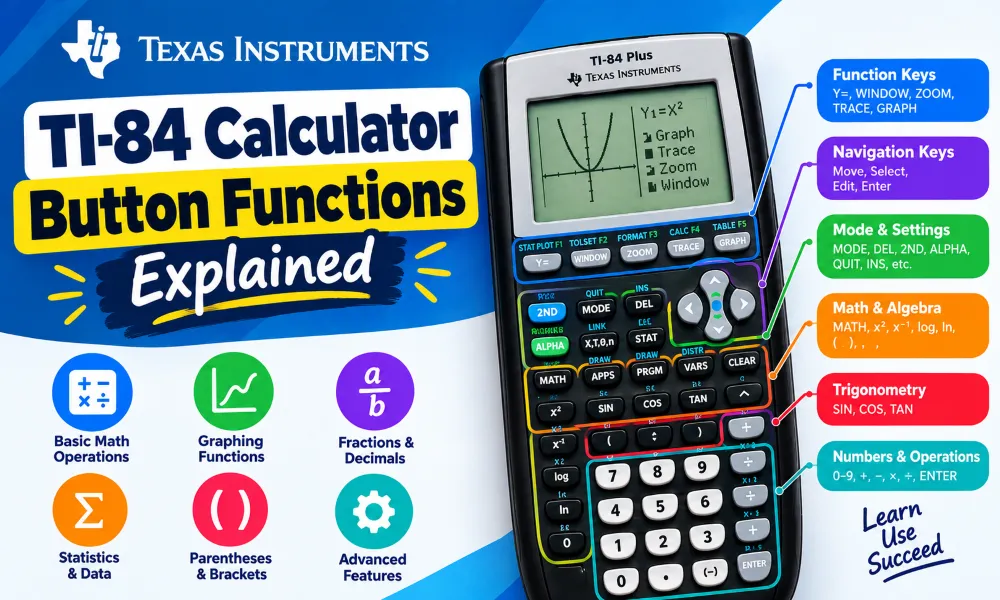
The TI-84 calculator has many buttons for arithmetic, graphing, statistics, algebra, matrices, fractions, and scientific calculations. Each button can perform more than one function. The primary function is printed directly on the button, while secondary functions usually appear above the button in a different color. The 2nd button activates these secondary functions.
The exact layout can vary slightly between the TI-84 Plus and TI-84 Plus CE. However, the main button functions are very similar. This guide explains the most commonly used TI-84 buttons and shows how to use them step by step.
1. ON Button
The ON button turns the calculator on.
How to use it
- Press
ON. - Wait for the home screen to appear.
- Enter your calculation or select a calculator function.
The ON button can also be used with 2nd to turn the calculator off.
To turn off the calculator
- Press
2nd. - Press
ON. - The calculator turns off.
The calculator can also turn itself off after a period of inactivity to save battery power.
2. 2nd Button
The 2nd button activates the secondary function printed above another button.
For example, the square function is normally accessed with the x² button. The inverse square function, √, is usually the secondary function.
How to use a secondary function
- Press
2nd. - Press the button containing the required secondary function.
- The calculator performs the selected function.
For example, to calculate the square root of 25:
- Press
2nd. - Press
x². - Enter
25. - Press
ENTER.
The display should show 5.
The 2nd button is one of the most important buttons because many advanced calculator functions are assigned to secondary keys.
3. ALPHA Button
The ALPHA button allows you to enter letters and other character functions printed above calculator buttons.
TI-84 calculators use letters for variables, lists, matrices, programs, and other functions.
How to enter a letter
- Press
ALPHA. - Press the button containing the desired letter.
- The letter appears on the screen.
For example, to enter the variable X:
- Press
ALPHA. - Press the button labeled
X.
Some models also support an ALPHA LOCK function for entering multiple letters.
4. Arrow Buttons
The four arrow buttons control the calculator cursor and allow you to move through menus and previous calculations.
The buttons are:
- Up arrow
- Down arrow
- Left arrow
- Right arrow
Common uses
You can use the arrow buttons to:
- Move the cursor through an expression.
- Select menu options.
- Scroll through previous calculations.
- Move around graph screens.
- Edit equations.
- Select items from lists.
Editing a calculation
If you enter an expression incorrectly:
- Press the left or right arrow.
- Move the cursor to the incorrect part.
- Delete or replace the value.
- Press
ENTERto calculate the corrected expression.
The up arrow can also recall previous expressions from the home screen.
5. ENTER Button
The ENTER button tells the calculator to process an expression, confirm a selection, or execute a command.
Example
To calculate 15 × 4:
- Enter
15. - Press
×. - Enter
4. - Press
ENTER.
The result is 60.
The ENTER button is also used when selecting menu options and entering equations in many calculator applications.
6. Number Buttons
The number buttons from 0 through 9 are used to enter numerical values.
You can combine these buttons with mathematical operators and functions.
Example
To calculate 125 + 275:
- Press
1,2,5. - Press
+. - Press
2,7,5. - Press
ENTER.
The answer is 400.
7. Decimal Point Button
The decimal point button enters decimal numbers.
Example
To calculate 3.5 × 2:
- Enter
3. - Press the decimal point.
- Enter
5. - Press
×. - Enter
2. - Press
ENTER.
The answer is 7.
8. Mathematical Operation Buttons
The primary arithmetic buttons are:
+for addition−for subtraction×for multiplication÷for division
Example
To calculate:
25 + 10 × 3
Enter:
25+10×3ENTER
The TI-84 follows mathematical order of operations.
Use parentheses when you need to control the order of a calculation.
9. Negative Sign Button
The negative sign is used to enter negative numbers.
For example, to calculate:
−8 + 3
Press:
(-)8+3ENTER
The answer is −5.
Do not confuse the negative sign with the subtraction button. The TI-84 uses a separate (-) key for entering negative values.
10. Parentheses Buttons
Parentheses control the order in which calculations are performed.
Example
To calculate:
(10 + 5) × 3
Press:
(10+5)×3ENTER
The answer is 45.
Parentheses are particularly useful when entering algebraic expressions, fractions, trigonometric calculations, and statistical formulas.
11. x² Button
The x² button squares a number.
Example
To calculate 12²:
- Enter
12. - Press
x². - Press
ENTER.
The answer is 144.
The same button can provide the square root function through its secondary function.
12. Square Root Button
The square root function is accessed using the secondary function associated with the square button.
Example
To calculate √81:
- Press
2nd. - Press
x². - Enter
81. - Press
ENTER.
The result is 9.
13. xâ»Â¹ Button
The xâ»Â¹ button calculates the reciprocal of a number.
The reciprocal of a number is:
1 ÷ x
Example
To calculate the reciprocal of 5:
- Enter
5. - Press
xâ»Â¹. - Press
ENTER.
The answer is 0.2.
This function is useful in algebra, scientific calculations, and statistics.
14. Exponent Button
The caret or power button is used to raise one number to another power.
Example
To calculate 2âµ:
- Enter
2. - Press
^. - Enter
5. - Press
ENTER.
The result is 32.
You can also use this function for scientific notation and algebraic calculations.
15. LOG Button
The LOG button calculates the common logarithm, which has a base of 10.
Example
To calculate log(100):
- Press
LOG. - Enter
100. - Press
ENTER.
The answer is 2.
The secondary function can provide the inverse logarithm function.
16. LN Button
The LN button calculates the natural logarithm.
Natural logarithms use the mathematical constant e as the base.
Example
To calculate ln(10):
- Press
LN. - Enter
10. - Press
ENTER.
The calculator displays the natural logarithm of 10.
The secondary function provides the inverse natural logarithm function.
17. SIN, COS, and TAN Buttons
The TI-84 includes three primary trigonometric buttons:
SINfor sineCOSfor cosineTANfor tangent
These functions can be used for angles in degrees or radians.
Example: sine of 30 degrees
First check the angle mode.
- Press
MODE. - Select
Degree. - Press
ENTERif required. - Press
SIN. - Enter
30. - Press
ENTER.
The answer should be 0.5.
Changing to radians
- Press
MODE. - Move to the angle settings.
- Select
Radian. - Press
ENTER.
The calculator will then interpret trigonometric angles as radians.
18. MODE Button
The MODE button controls important calculator settings.
The MODE menu can control settings such as:
- Degree or radian angle mode
- Normal or scientific notation
- Float or fixed decimal display
- Function, parametric, polar, or sequence graphing modes
- Other calculation settings
How to change the angle mode
- Press
MODE. - Move the cursor to
Degree. - Press
ENTER. - Press
2nd. - Press
MODEto return to the home screen.
Always check the angle mode before performing trigonometric calculations.
19. CLEAR Button
The CLEAR button removes information from the current screen or cancels certain selections.
On the home screen
Pressing CLEAR generally clears the current entry line.
To clear the entire calculator screen
- Press
CLEAR. - The current input is removed.
Do not confuse clearing the screen with resetting the calculator. Clearing an entry does not normally delete stored variables, programs, or other calculator data.
20. DEL Button
The DEL button deletes the character immediately before or at the cursor position, depending on the current screen.
How to delete part of an expression
- Enter an expression.
- Use the left or right arrow to move the cursor.
- Place the cursor next to the unwanted character.
- Press
DEL.
This is useful when correcting equations without retyping the entire expression.
21. STAT Button
The STAT button opens the calculator's statistics functions.
You can use the STAT menu for:
- One-variable statistics
- Linear regression
- Quadratic regression
- Exponential regression
- Lists
- Statistical calculations
Example: entering a data list
- Press
STAT. - Select
1:Edit. - Enter data into
L1. - Press
ENTERafter entering each value. - Use the arrow buttons to move through the list.
You can then use statistical calculations from the STAT menu.
22. MATH Button
The MATH button opens additional mathematical functions.
The menu can contain functions for:
- Fractions
- Absolute value
- Cube roots
- Roots
- Calculus functions
- Number operations
- Other mathematical commands
Example: absolute value
To calculate |−12|:
- Press
MATH. - Select the absolute value function.
- Enter
−12. - Close the parentheses if required.
- Press
ENTER.
The result is 12.
23. APPS Button
The APPS button opens applications installed on the calculator.
Applications can provide additional functions beyond the standard home-screen calculator.
Depending on the calculator model and installed software, applications can support subjects such as:
- Mathematics
- Statistics
- Finance
- Graphing
- Data analysis
Select an application with the arrow buttons and press ENTER to open it.
24. PRGM Button
The PRGM button opens the calculator's programming menu.
Users can create programs that perform repeated calculations or automate calculator operations.
To access programs
- Press
PRGM. - Select a program from the list.
- Press
ENTER. - Select the appropriate option.
- Follow the instructions displayed on the screen.
Programs are useful when the same sequence of calculations must be performed repeatedly.
25. VARS Button
The VARS button provides access to stored variables and other calculator information.
It can be used when working with values that have been stored in the calculator.
For example, if you store a number in a variable, you can recall that value later without typing the number again.
26. Y= Button
The Y= button opens the graphing equation editor.
This is where you enter equations that you want the TI-84 to graph.
How to enter a graphing equation
- Press
Y=. - Place the cursor next to
Y1. - Enter the equation.
- Press
GRAPH.
For example, to graph:
y = x²
Enter X using the calculator's X,T,θ,n button.
Then press GRAPH.
The calculator displays the graph based on the current window settings.
27. GRAPH Button
The GRAPH button displays the graph of the equations entered in the Y= menu.
How to graph an equation
- Press
Y=. - Enter an equation.
- Press
GRAPH. - Wait for the graph to appear.
Use the arrow buttons to move around the graph.
28. WINDOW Button
The WINDOW button controls the visible graphing area.
Important settings include:
- Xmin
- Xmax
- Xscl
- Ymin
- Ymax
- Yscl
How to change the graph window
- Press
WINDOW. - Select the value you want to change.
- Enter the new value.
- Press
ENTER. - Press
GRAPH.
For example, increasing Xmax allows the graph to display a larger positive x-axis range.
29. ZOOM Button
The ZOOM button provides predefined graph viewing options.
Common options include:
- Zoom Standard
- Zoom In
- Zoom Out
- Zoom Fit
- Zoom Square
- Other graph-specific views
How to zoom in
- Press
ZOOM. - Select the zoom-in option.
- Press
ENTER. - Move the cursor to the area you want to enlarge.
- Press
ENTER.
30. TRACE Button
The TRACE button allows you to move along a graphed function and view coordinates.
How to trace a graph
- Enter an equation in
Y=. - Press
GRAPH. - Press
TRACE. - Use the left and right arrow buttons.
- Read the x and y coordinates displayed on the screen.
TRACE is useful for identifying approximate values from a graph.
31. TABLE Button
The TABLE function displays values generated by graphing equations.
How to view a table
- Enter an equation in
Y=. - Press
2nd. - Select
TABLE. - Use the arrow buttons to move through the table.
The calculator displays corresponding x and y values.
32. TABLE SET Button
TABLE SET controls how the table generates values.
You can change settings such as:
- Starting value
- Increment
- Automatic or manual table generation
How to change the table settings
- Press
2nd. - Press the button assigned to
TBLSET. - Change the desired settings.
- Press
ENTER. - Open the table to view the results.
33. MATRIX Functions
TI-84 calculators can perform matrix operations.
Matrix functions can be accessed through the appropriate matrix menu, generally using the 2nd function and MATRIX key.
You can create matrices and perform operations such as:
- Addition
- Subtraction
- Multiplication
- Determinants
- Inverses
- Transposes
Basic matrix workflow
- Open the matrix menu.
- Select the matrix you want to create or edit.
- Choose the matrix dimensions.
- Enter the matrix values.
- Return to the home screen.
- Insert the matrix into an expression.
- Press
ENTER.
Matrix calculations are commonly used in algebra, precalculus, linear algebra, and other mathematics courses.
34. FRACTION Functions
TI-84 calculators can work with fractions through their fraction-related functions.
Entering a fraction
On supported TI-84 models and operating systems:
- Open the appropriate fraction template or function.
- Enter the numerator.
- Move to the denominator.
- Enter the denominator.
- Press
ENTER.
You can also convert between decimal and fraction forms when the calculator and expression support the required conversion.
35. STO→ Button
The STO→ button stores a value in a variable.
Example
To store 25 in A:
- Enter
25. - Press
STO→. - Press
ALPHA. - Select
A. - Press
ENTER.
The value 25 is now stored in variable A.
You can recall the value later by entering A.
36. Ans Button
The ANS function recalls the previous answer.
Example
Suppose you calculate:
25 × 4
The answer is 100.
Now enter:
ANS + 20
The calculator uses 100 as the value of ANS.
This saves time when performing calculations that depend on a previous result.
37. How to Use the TI-84 Button System Correctly
The easiest way to understand the TI-84 is to remember that many buttons have multiple functions.
Use this basic process:
- Look at the main label on the button.
- Check whether another function is printed above the button.
- Use the main button for the primary function.
- Press
2ndfirst for the secondary function. - Press
ALPHAfirst when entering a letter or alpha character. - Use arrow buttons to move through menus and expressions.
- Press
ENTERto confirm or calculate. - Use
CLEARto remove the current entry. - Use
DELto remove individual characters. - Check
MODEbefore calculations involving degrees, radians, notation, or graphing modes.
38. Common TI-84 Button Mistakes
Several button errors can produce unexpected answers.
Wrong angle mode
A trigonometric calculation can produce the wrong result if the calculator is set to radians instead of degrees.
Check MODE before using SIN, COS, or TAN.
Using subtraction instead of the negative key
Use the (-) button when entering a negative number.
For example:
(-) 5
represents negative five.
The subtraction button is used to subtract one value from another.
Forgetting parentheses
Parentheses are important for complex expressions.
For example, use parentheses when you need the calculator to evaluate a complete numerator or denominator before performing another operation.
Confusing 2nd with ALPHA
2nd activates secondary functions.
ALPHA activates letters and alpha characters.
Using the wrong key can produce a different command from the one you intended.
Confusing CLEAR with calculator reset
CLEAR normally removes the current entry or clears a screen. It does not mean that the calculator has been completely reset.
A reset can affect stored data and settings, so it should be performed only when necessary.
39. Quick TI-84 Button Function Reference
| Button | Main Function |
|---|---|
| ON | Turn calculator on |
| 2nd | Access secondary functions |
| ALPHA | Enter letters and alpha characters |
| ENTER | Calculate or confirm |
| CLEAR | Clear current entry or screen |
| DEL | Delete characters |
+ | Addition |
− | Subtraction |
× | Multiplication |
÷ | Division |
(-) | Enter a negative number |
x² | Square a number |
^ | Raise a number to a power |
xâ»Â¹ | Reciprocal |
LOG | Base-10 logarithm |
LN | Natural logarithm |
SIN | Sine |
COS | Cosine |
TAN | Tangent |
MODE | Change calculator settings |
MATH | Mathematical functions |
STAT | Statistics |
Y= | Enter graph equations |
WINDOW | Set graph window |
ZOOM | Change graph view |
TRACE | Trace graph coordinates |
GRAPH | Display graph |
PRGM | Access programs |
APPS | Open applications |
VARS | Access variables |
STO→ | Store a value |
2nd + appropriate key | Access secondary function |
40. Final Tips for Using TI-84 Buttons
Start with the home screen when you need basic arithmetic. Use the MATH, STAT, Y=, WINDOW, ZOOM, and other menus when you need specialized functions.
Check the secondary labels above buttons whenever you cannot find a function. Many important TI-84 functions are accessed with 2nd.
Check the calculator mode before using trigonometric functions or graphing features. Use the arrow buttons to edit expressions instead of deleting the entire calculation.
Practice the most frequently used functions first. These usually include arithmetic, fractions, powers, square roots, logarithms, trigonometric functions, graphing, statistics, and variables.
The TI-84 becomes easier to use when you understand the relationship between the primary button, 2nd functions, ALPHA functions, and the calculator menus. Once these controls are familiar, you can use the same button system for algebra, geometry, precalculus, statistics, matrix operations, and graphing.
🧮 Try the TI-84 Calculator Online — It's Free!
Put your knowledge to practice with our free browser-based TI-84 Plus CE emulator. No downloads, no sign-up required.
Open Calculator →