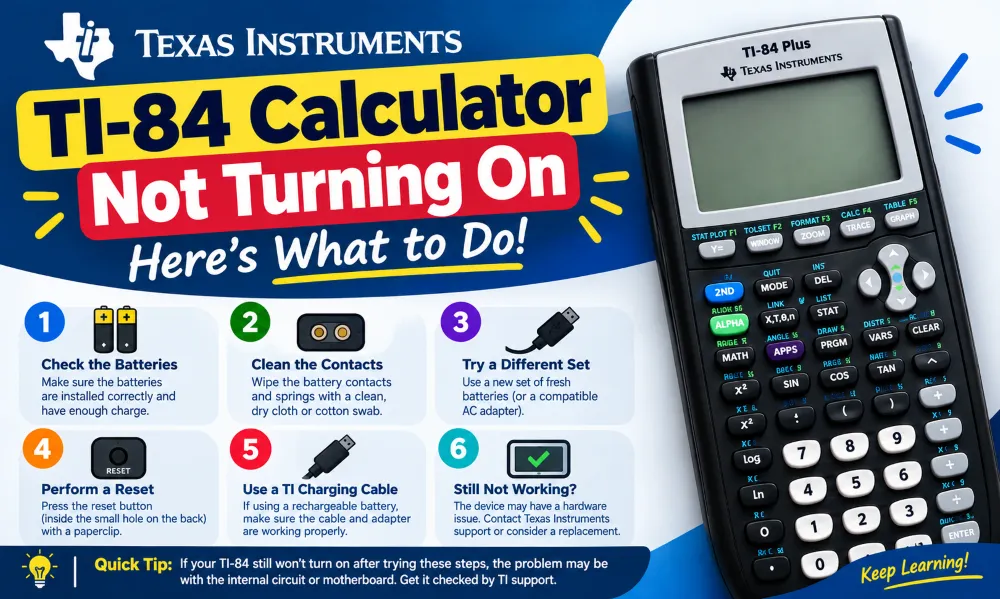
A TI-84 calculator that does not turn on can have several causes. A drained battery is the most common reason, but the calculator may also have a loose battery connection, a damaged charging cable, a stuck power state, or a hardware problem. The troubleshooting steps depend on whether you use a TI-84 Plus, TI-84 Plus Silver Edition, or TI-84 Plus CE.
This guide explains how to check the power source, reset the calculator, inspect the battery, and identify signs of hardware failure.
1. Check the Battery
A low or completely drained battery is the first thing to check when your TI-84 calculator does not turn on.
For a TI-84 Plus or TI-84 Plus Silver Edition, check the AAA batteries in the back of the calculator. Replace all four AAA batteries with fresh batteries if the screen remains completely blank.
For a TI-84 Plus CE, the calculator uses a rechargeable lithium-ion battery. Connect the calculator to a compatible USB charging cable and allow it to charge before trying to turn it on.
Do not mix old and new AAA batteries. Use batteries of the same type and replace the complete set.
2. Charge the TI-84 Plus CE
If you have a TI-84 Plus CE, connect the calculator to a working power source.
Follow these steps:
- Connect the USB cable to the calculator.
- Connect the other end to a compatible USB power source.
- Leave the calculator connected for at least 30 minutes.
- Press the ON button.
- Check whether the screen turns on.
Try another compatible cable if the calculator shows no charging indication.
A damaged or poorly connected cable can prevent the battery from charging.
3. Try a Different Power Source
The problem may come from the charger or USB port rather than the calculator.
Try connecting the TI-84 Plus CE to another USB port or compatible power adapter. Avoid assuming that a particular cable works simply because the cable fits the calculator.
If the calculator starts charging with another cable or power source, the original charging setup may be the problem.
4. Press the ON Button Correctly
The ON button is located near the lower-left area of the TI-84 keyboard.
Press the ON button once and wait several seconds.
If nothing happens, press the button again. Do not repeatedly press random keys because the calculator may simply need a power reset.
If the screen turns on but remains unusually dark, the calculator may actually be running.
5. Adjust the Screen Contrast
A TI-84 can appear to be turned off when the screen contrast is set extremely low.
Turn the calculator on and try adjusting the contrast.
On many TI-84 models, press:
2nd → Up Arrow
to increase the contrast.
Press:
2nd → Down Arrow
to decrease the contrast.
Hold the appropriate arrow combination for several seconds and watch for changes on the screen.
If the calculator produces a faint display, increasing the contrast may restore normal visibility.
6. Perform a Soft Reset
A temporary software or power-state problem can prevent normal startup.
For a TI-84 Plus CE, disconnect the charging cable first. Then remove the battery if your model and battery compartment allow safe removal.
Wait for a short period before reconnecting the battery and attempting to turn the calculator on.
A reset can clear a temporary frozen state. However, avoid performing a full memory reset unless necessary because some reset procedures can remove stored calculator data.
7. Check the Battery Compartment
Inspect the battery compartment for obvious problems.
Look for:
- Loose batteries
- Incorrect battery orientation
- Corroded battery contacts
- Dirt around the terminals
- Physical damage
- A battery that appears swollen or damaged
Make sure every AAA battery is installed according to the polarity markings.
Do not use a swollen, leaking, or physically damaged battery. Replace the battery and inspect the calculator for signs of damage.
8. Remove and Reinstall the Batteries
For models that use removable AAA batteries, removing and reinstalling the batteries can restore a poor electrical connection.
Turn the calculator over and remove the battery cover. Remove the batteries and wait for a short period.
Install fresh batteries while following the polarity markings. Replace the battery cover and press ON.
If the calculator starts normally, the previous problem may have been caused by weak batteries or a poor connection.
9. Check for a Damaged Screen
The calculator may be powered on even when the display does not work.
Listen for signs that the calculator is responding. You can also try pressing keys and checking whether the display changes.
If the calculator has suffered a fall, pressure, water exposure, or another physical impact, the LCD or internal connection may be damaged.
A blank screen combined with physical damage can indicate a hardware problem rather than a battery problem.
10. When the TI-84 Needs Repair
If fresh batteries, charging, contrast adjustment, and basic reset steps do not restore the calculator, the problem may involve internal hardware.
Possible causes include:
- Damaged power circuitry
- Failed battery
- Damaged LCD
- Broken internal connection
- Corroded contacts
- Liquid damage
- Physical impact
Avoid opening the calculator unless you have the required technical knowledge. Internal components can be damaged during disassembly.
If the calculator is still under warranty, check the applicable Texas Instruments support and warranty options before attempting repairs.
Frequently Asked Questions
Why is my TI-84 calculator not turning on?
The most common causes are dead batteries, a discharged rechargeable battery, incorrect battery installation, low screen contrast, or a temporary software problem.
How do I turn on a TI-84 calculator?
Press the ON button. If the calculator does not respond, check the batteries or charge the TI-84 Plus CE before trying again.
Why is my TI-84 screen blank?
A blank screen can result from low contrast, depleted batteries, a frozen calculator, or display hardware damage. Try increasing the contrast and checking the power source.
How long should I charge a TI-84 Plus CE?
Allow a completely discharged TI-84 Plus CE to charge before testing it. If there is no charging response after using a known-working cable and power source, further troubleshooting may be necessary.
What should I do if new batteries do not fix my TI-84?
Check battery orientation, inspect the battery contacts, adjust the screen contrast, and try a reset. If the calculator still does not respond, internal hardware may require professional inspection.
🧮 Try the TI-84 Calculator Online — It's Free!
Put your knowledge to practice with our free browser-based TI-84 Plus CE emulator. No downloads, no sign-up required.
Open Calculator →