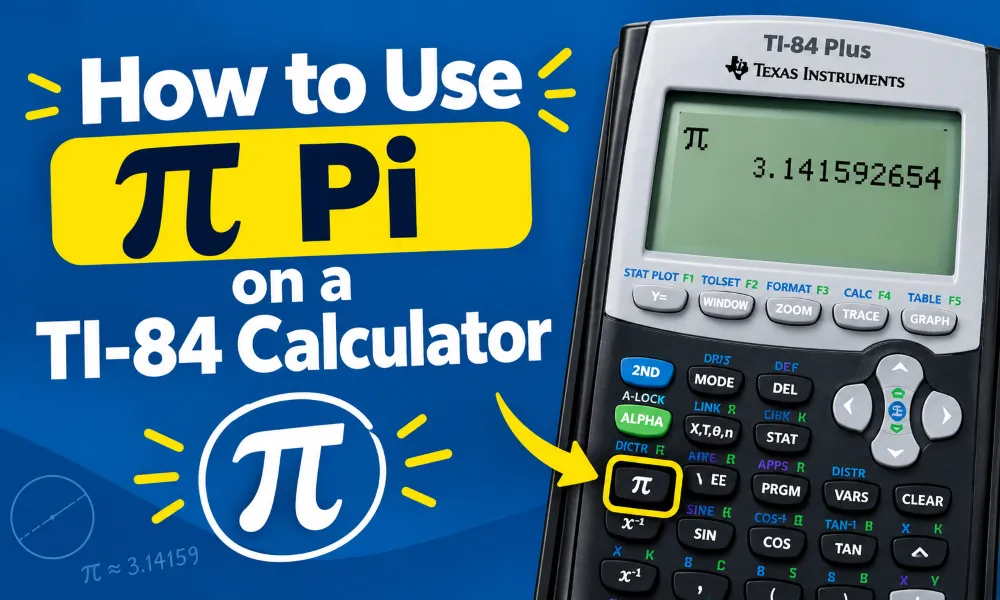
The pi symbol is used in geometry, trigonometry, algebra, statistics, and many other types of math. On a TI-84 calculator, you can enter pi directly instead of typing its decimal value. The calculator stores pi as an accurate mathematical constant and uses it in calculations according to the selected display settings.
Using pi on a TI-84 is simple once you know where the button is located. You can use pi in basic calculations, circles, angles, area, circumference, volume, and trigonometric expressions. The TI-84 Plus and TI-84 Plus CE both provide a dedicated pi function.
How to Enter Pi on a TI-84 Calculator
You can enter pi on a TI-84 by pressing the [2nd] key followed by the [^] key.
Follow these steps:
- Turn on your TI-84 calculator.
- Press [2nd].
- Press [^].
- The calculator displays the π symbol.
- Enter the rest of your mathematical expression.
- Press [ENTER] to calculate the result.
For example, to calculate Ï€ × 5:
Press: [2nd] [^] [×] 5 [ENTER]
The calculator returns approximately:
15.70796327
The exact displayed result depends on the calculator's mode and decimal settings.
Where Is the Pi Button on a TI-84?
The TI-84 does not have a separate button labeled only with the π symbol. Instead, pi is assigned to a secondary function.
Look at the ^ key near the upper-right area of the calculator keyboard. The π symbol is printed above this key. You access the secondary function by pressing [2nd] first.
The key sequence is:
[2nd] → [^]
This inserts π into the current line.
The same method works when you are entering pi inside parentheses, fractions, powers, or other mathematical expressions.
How to Use Pi in a Calculation
The TI-84 can use pi in almost any normal mathematical expression.
For example, suppose you want to calculate:
2Ï€ + 4
Enter:
2 × Ï€ + 4
On the calculator, press:
[2] [×] [2nd] [^] [+] [4] [ENTER]
The result is approximately:
10.28318531
You can also place pi inside parentheses.
For example:
(3Ï€)²
Enter:
[(] 3 × Ï€ [)] ^ 2 [ENTER]
The calculator evaluates the expression using the mathematical value of pi.
How to Calculate the Area of a Circle Using Pi
Pi is commonly used to calculate the area of a circle.
The formula is:
A = Ï€r²
Here, A represents the area and r represents the radius.
Suppose a circle has a radius of 6 inches.
The calculation is:
A = Ï€ × 6²
On a TI-84, enter:
Ï€ × 6²
Then press [ENTER].
The result is approximately:
113.0973 square inches
Using the built-in pi function gives the calculator a more accurate value than manually entering 3.14.
How to Calculate the Circumference Using Pi
The circumference of a circle can be calculated with:
C = 2Ï€r
For example, if the radius is 10 centimeters:
C = 2Ï€(10)
Enter:
2 × Ï€ × 10
Press [ENTER].
The result is approximately:
62.8319 cm
You can also use the diameter instead of the radius. The formula becomes:
C = πd
If the diameter is 20 cm, enter:
Ï€ × 20
The result is the same.
How to Use Pi in Trigonometry
Pi is also important when working with angles measured in radians.
A full rotation equals:
2Ï€ radians
A half rotation equals:
Ï€ radians
A quarter rotation equals:
Ï€/2 radians
For example:
sin(Ï€/2) = 1
Before entering this calculation, check that the TI-84 is using Radian mode.
To check the angle mode:
- Press [MODE].
- Find the angle settings.
- Select Radian.
- Press [ENTER].
- Press [2nd] [MODE] to return to the home screen.
Now enter:
sin(Ï€/2)
Press [ENTER].
The calculator should return:
1
If the calculator is set to Degree mode, the same expression can produce a different result because the calculator interprets the angle differently.
How to Use Pi in Fractions
You can use pi inside fractions on a TI-84.
For example:
Ï€/4
This value represents 45 degrees when working with radians.
To enter it, press:
[2nd] [^] [÷] 4 [ENTER]
You can also enter more complicated expressions such as:
3Ï€/2
or
5Ï€/6
These expressions are frequently used in trigonometry.
The TI-84 can display results using decimal notation or, in supported exact-value workflows, retain mathematical expressions involving pi.
How to Use Pi in Powers
Pi can be raised to a power like any other mathematical value.
For example:
Ï€²
Enter:
[2nd] [^] [x²] [ENTER]
The calculator gives an approximate decimal result:
9.869604401
You can also calculate expressions such as:
Ï€³
or
Ï€âµ
by using the exponent key.
For example:
Ï€³
can be entered as:
Ï€ ^ 3
Then press [ENTER].
How to Use Pi for Volume Calculations
Pi appears in several three-dimensional geometry formulas.
For a cylinder, the volume formula is:
V = Ï€r²h
Suppose a cylinder has a radius of 4 meters and a height of 10 meters.
Enter:
Ï€ × 4² × 10
The TI-84 calculates approximately:
502.6548 cubic meters
For a cone, the formula is:
V = 1/3Ï€r²h
For a sphere, the formula is:
V = 4/3Ï€r³
The TI-84 can handle these formulas directly. Enter each part carefully and use parentheses when needed.
How to Use Pi With Scientific Notation
Pi can also be included in calculations involving very large or very small numbers.
For example, a physics problem may contain an expression such as:
2Ï€ × 3.00 × 10â¸
You can enter pi normally and use the calculator's scientific notation functions for the other values.
The important point is that π is not the same as 3.14. The calculator uses the mathematical constant pi rather than the rounded value unless you manually enter 3.14.
Pi vs. 3.14 on a TI-84
The TI-84 can calculate with either π or 3.14, but the results may differ slightly.
For example:
Ï€ × 10²
produces approximately:
314.1593
The calculation:
3.14 × 10²
produces:
314
The difference occurs because 3.14 is a rounded approximation of pi.
Use the built-in π function when a math problem asks you to use pi. This keeps more precision during the calculation.
How to Get a Decimal Value for Pi
If you want to see pi as a decimal, enter the pi symbol and press [ENTER].
The calculator displays an approximation based on the current display settings.
For example:
π ≈ 3.141592654
The number of visible decimal places can vary depending on the calculator's mode.
You can change the display format through the [MODE] menu. Options include different decimal formats such as Normal, Sci, and Eng.
Common Mistakes When Using Pi
Several simple mistakes can cause incorrect results.
Using Degree Mode Instead of Radian Mode
This is one of the most common problems when using pi with trigonometric functions. Check the mode before calculating expressions such as sin(Ï€/2).
Typing 3.14 Instead of Pi
Entering 3.14 gives an approximation rather than the actual mathematical constant. Use [2nd] [^] when the problem requires pi.
Forgetting Parentheses
Parentheses can make complex expressions easier to enter and prevent order-of-operations mistakes.
For example, enter:
Ï€(5² + 3²)
rather than entering separate calculations without grouping.
Confusing Radius and Diameter
Circle formulas use different measurements. The area formula uses the radius, while the circumference formula can use either radius or diameter.
Rounding Too Early
Keep the calculator's full precision during intermediate calculations. Round the final answer according to the instructions in your math problem.
Frequently Asked Questions
What button is pi on a TI-84?
Pi is the secondary function above the ^ key. Press [2nd], then [^], to enter π.
What is pi on a TI-84 calculator?
Pi is a mathematical constant representing the ratio of a circle's circumference to its diameter. Its approximate decimal value is 3.141592654.
How do I type π on a TI-84 Plus CE?
Press [2nd], then press the [^] key. The π symbol appears on the screen.
Can I use pi in trigonometry?
Yes. Pi is widely used with radian measurements. Set the TI-84 to Radian mode when working with angles expressed using π.
How do I calculate pi squared?
Enter Ï€² by pressing [2nd] [^] to insert pi and then press the [x²] key.
Is pi the same as 3.14?
No. 3.14 is a rounded approximation of pi. The built-in π function provides a much more accurate value for calculations.
Can I use pi in geometry formulas?
Yes. You can use pi in formulas for circle area, circumference, cylinder volume, cone volume, sphere volume, and many other geometry calculations.
Why does my answer with pi look different?
The TI-84 may display a rounded decimal approximation based on the selected calculator mode. The underlying calculation uses the value of pi rather than only the digits visible on the screen.
🧮 Try the TI-84 Calculator Online — It's Free!
Put your knowledge to practice with our free browser-based TI-84 Plus CE emulator. No downloads, no sign-up required.
Open Calculator →